

The details panel
The details panel, on the right of the window, tells about what the focused window shows: the session, shell or file there, and the worktree it is in. It follows the focus from window to window, not the tree’s selection. While an environment’s heading is selected in the tree, it tells about that environment instead, and while a pull request’s or issue’s row is selected, about that.
The panel is made of components, each one piece of what it can tell, arranged into tabs and a foot shown under every tab. Adroit comes with an arrangement of its own, and you can make your own. Click a tab, or press 1 to 9 in the panel, to show it.
What it shows as it comes
Section titled “What it shows as it comes”For what a window shows:
| Tab | What it holds |
|---|---|
| Overview | The session, the change its worktree is on, the pull request open for its branch, the newest trees of its timeline, what runs for it, and About |
| Code | The change’s full description beside the files the worktree changes, and the log of changes leading to it, drawn as a graph |
| Timeline | The plan the session’s agent records of its work |
| Conversation | The prompts sent to the session, the messages it sent and received, its subagents, and the sessions it worked with |
| Resources | What the conversation brought up: files, links, claude.ai artifacts and images |
Under every tab, the foot shows how full the session’s context is, what is left of the agent account’s limits and when they reset, and the CPU, GPU, memory and disk use of the machine the work runs on.
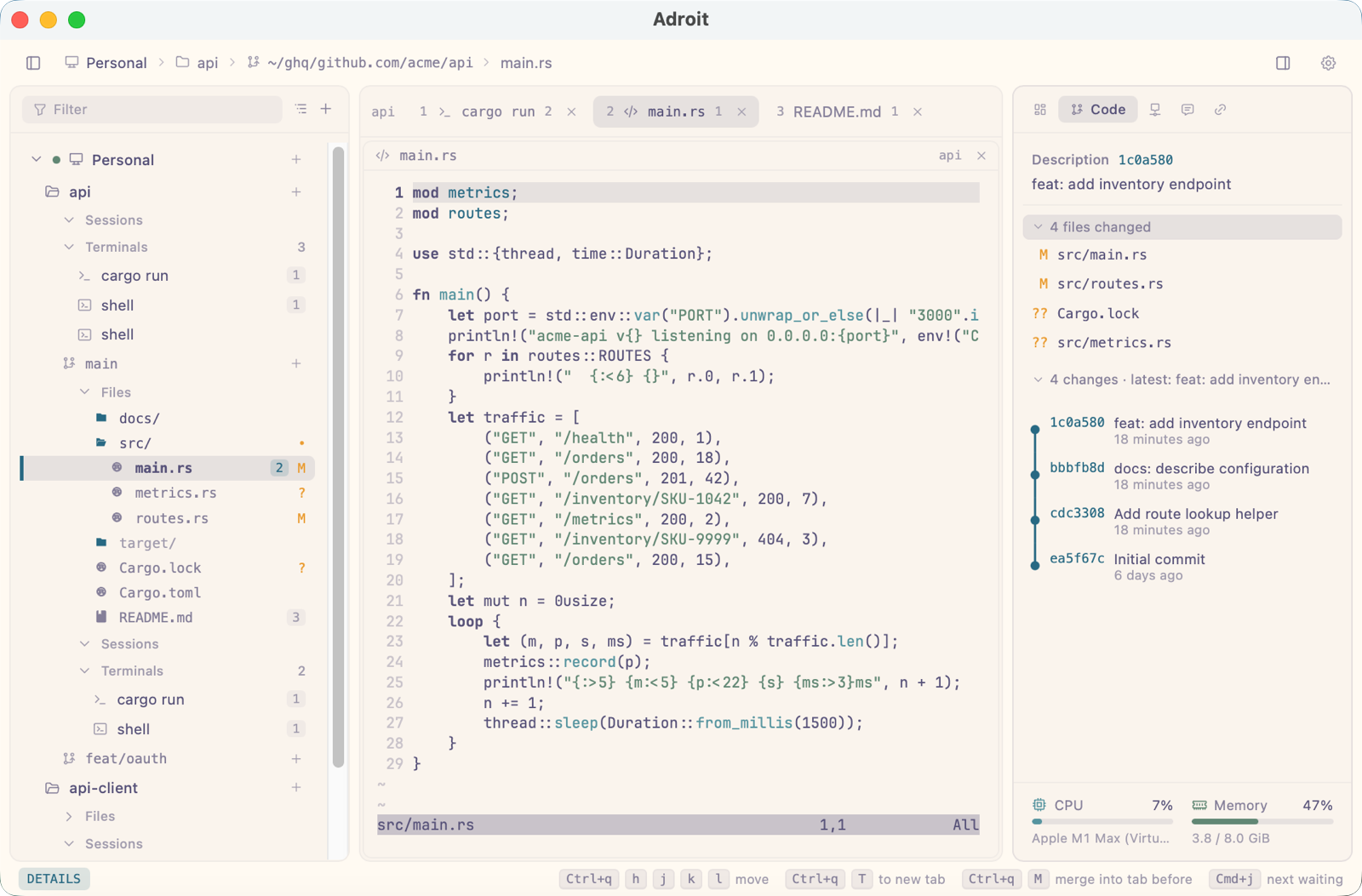
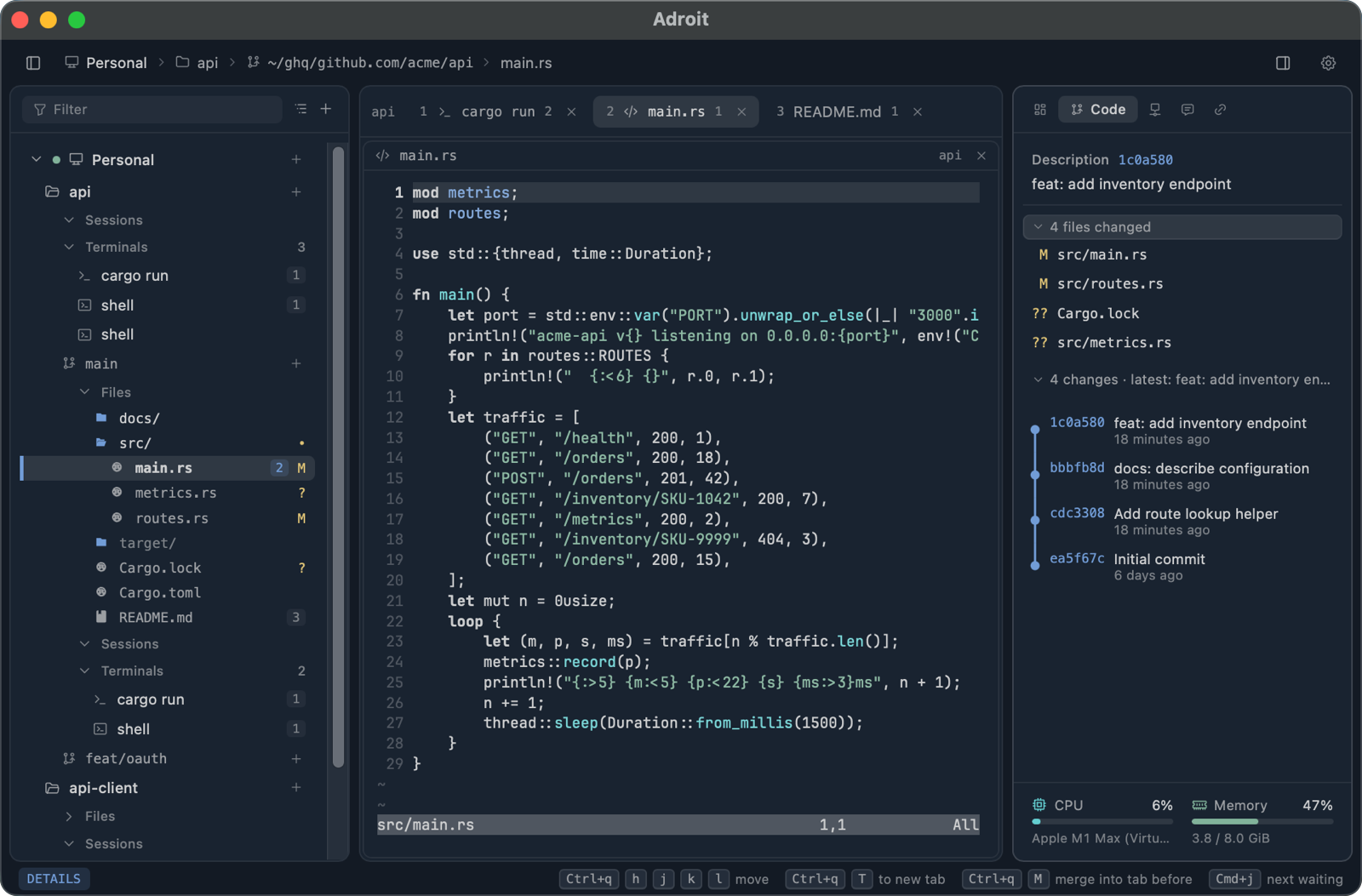
An environment’s panel has Overview, with its connection, buttons to try it again, pair again or open its settings, and what waits for it, and Profiles, each agent profile with its login and the usage left on it. A pull request’s or issue’s has Overview, Conversation and Files, over a foot of its checks.
The session’s components
Section titled “The session’s components”- Session: its name, state, latest model, when it started and how long ago it last took input. A session waiting on you or failed shows what its program said of why.
- Change: the change the worktree is on and how many files it changes.
- Running: the subagents still at work, the processes it started, and the sessions tied to it that still run.
- About: the tokens the conversation used, its prompt and tool call counts, the profile and login it started from, its workspace and worktree, and the conversation’s ID. Copy a value with the button shown over it.
- Prompts: what was said to the session in its turns, newest first, for every agent. Open one to read it whole, or copy it.
- Messages and Sessions: what it sent and received through Adroit, the session that opened it and those it opened (sessions that open sessions).
- Subagents: those Claude Code set to work, still at work first, each named by what it was last asked.
- Files, Links, Artifacts and Images: what the conversation brought up, newest first. A file opens in its viewer, a link in your browser, and an image in the lightbox.
- Changes and Log: the jj change’s full description, or the HEAD
commit’s message, beside the files changed; opening a file shows its diff.
In a jj repository, the log runs from trunk up to
@. - GitHub: the pull request open for the worktree’s branch, as last read: its review, its checks and who it waits for.
A shell or a draft has no conversation, so what is read of one shows nothing for it.
The timeline
Section titled “The timeline”A session’s agent records the plan of a goal that takes several steps as a tree of tasks, through Adroit’s own tools, and marks each task as it starts, finishes or is blocked. It is the same for Claude Code, Codex, Pi and OpenCode, and is kept with the session’s record. Adroit tells every session to record one before work of several steps; a Claude Code session whose timeline is empty is reminded with each prompt you send.
Each tree is a card: its title and status, a bar split into what is completed, in progress, blocked and not started, the share completed, the leaf tasks completed, and how long it has taken. Under the card are its tasks, each step under the task it is a step of. The newest tree comes first; a completed tree shows its card alone until it is unfolded. Opening a task shows what it is for, what came of it, and its history, newest first.
Steps split their parent’s share by their weights, so splitting a task into steps leaves its share as it was. The timeline is the agent’s record, not a plan Adroit keeps or enforces.
Moving in the panel
Section titled “Moving in the panel”j and k move over the headings and rows of what is shown, and Enter opens a row: a link, an image, a message, a process, a subagent, a file changed or a change of the log. Esc or Backspace goes back to the tab, and y copies the row’s value. Ctrl+d and Ctrl+u scroll by half a page. In Timeline, a tree’s card folds and unfolds as a heading does.
Arranging the panel
Section titled “Arranging the panel”Settings › All environments › Details panel arranges the panel, for each of what it describes, on a picture of it drawn with sample content. Drag a component from the list beside it onto a tab or the foot, drag one placed to move it, or onto the right of another to put it beside that one; click one to set how it shows. Tabs are named and given an icon there. Adroit’s arrangement can be put back.
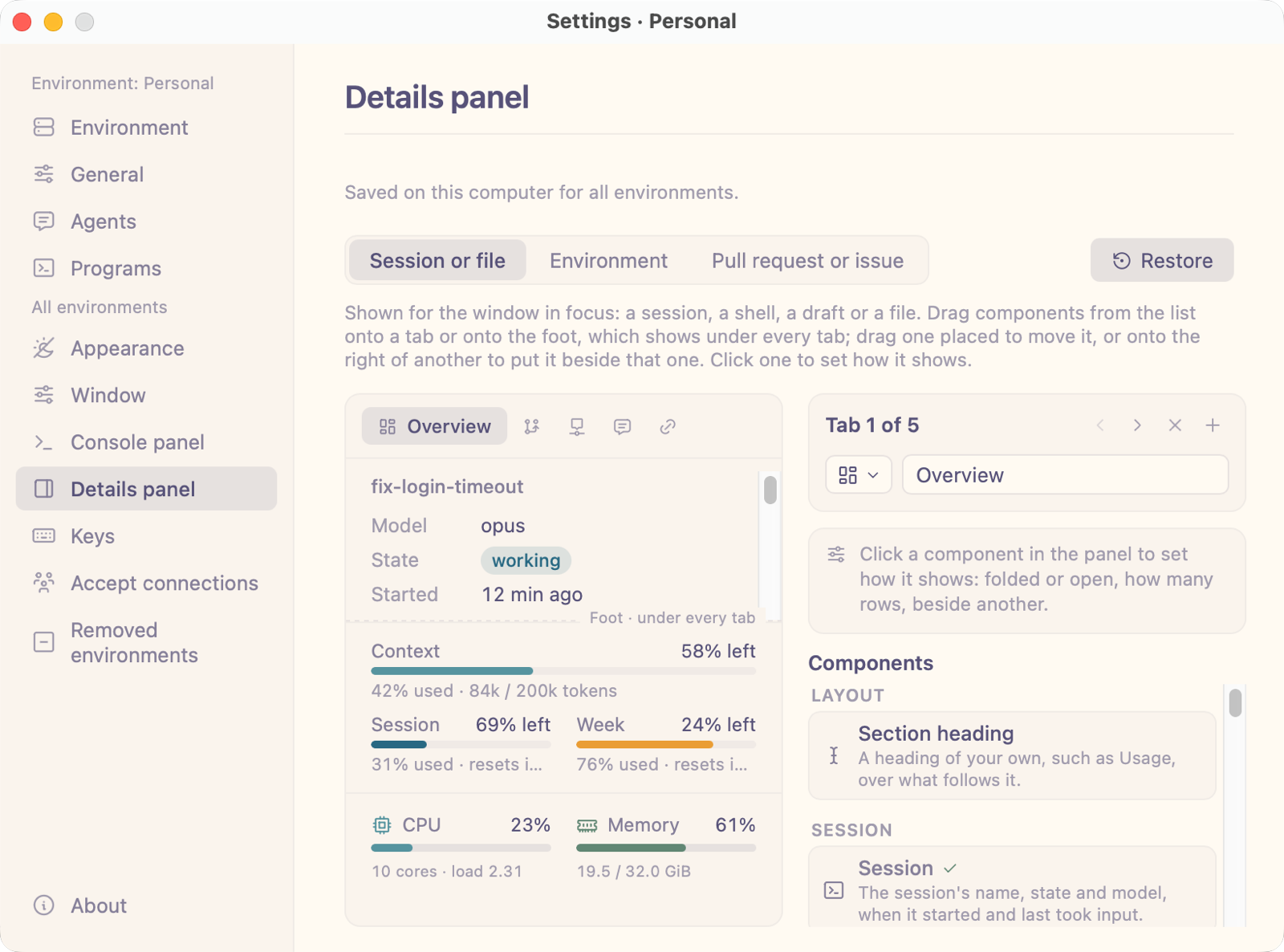
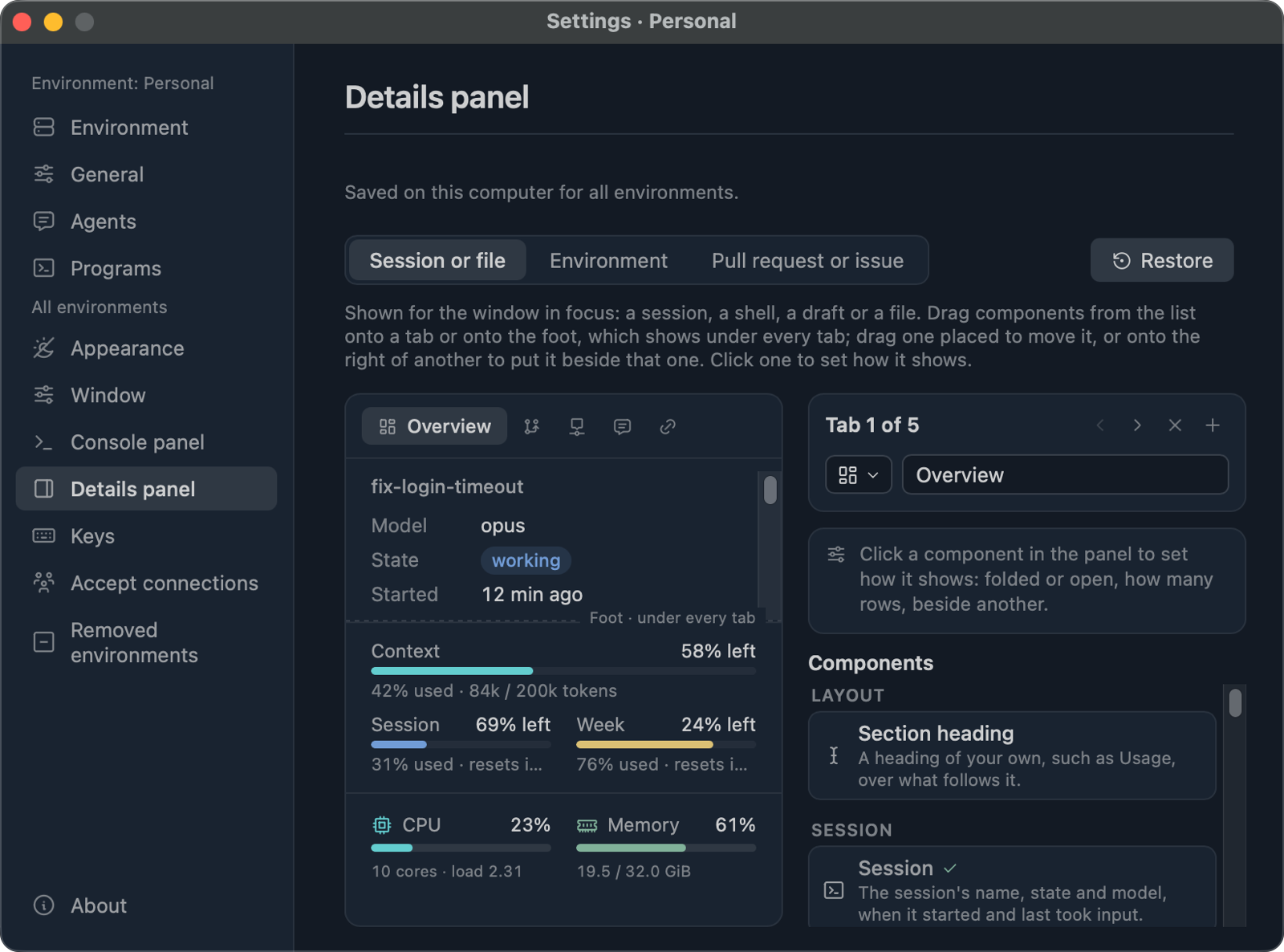
The arrangement is this computer’s, for every environment. It is written to
settings.toml as the table [panel]:
[panel.session]foot = ["context", { component = "cpu", beside = true }]
[[panel.session.tabs]]title = "Work"icon = "info-circle"components = ["session", "change", "running", "files"]
[[panel.session.tabs]]title = "Code"components = [ "changes", { component = "log", folded = true }, "storage",]panel.session, panel.environment and panel.github each replace
Adroit’s arrangement for what they describe; one left out stays as Adroit has
it. A component is written by its name, or as a table with folded,
shown (how many rows before a row that shows them all) or beside. The
components
and the settings reference
list everything that can be placed.