

Getting started
Mod is Cmd on macOS and Ctrl+Shift elsewhere.
Start a session
Section titled “Start a session”- Press Mod+p, or w in the tree, to open the picker. It lists the sessions already running, those waiting on you first, then the directories to start one in: those the tree lists, those Claude Code has been used in, your ghq repositories, and the folders in each folder your settings list. Type to narrow the list.
- Choose a directory. A new session opens as a draft, with the prompt ready.
- On the draft, choose a profile, a model and permissions. The profile decides the agent; Ctrl+g p and Ctrl+g P move through the profiles. See Agents and profiles.
- Write the first prompt and press Ctrl+Enter. That starts the session; later prompts go to the same session.
In the tree, n on a row starts a session in that row’s worktree or directory without the picker.
Naming
Section titled “Naming”The session is first named from the first words of its prompt. Once its agent has answered, the agent names the session itself, in a few words saying what it works on and in the language you write in, and names it again when the work turns to something else.
To name it yourself, make the first line of the first prompt
name: <label>, such as name: review-api, which is removed from what the
agent gets, or rename it with R in the tree. A name you gave is
kept; emptying it lets the agent name the session again. rename_sessions
in the settings switches the agent’s naming off.
Every session also carries a short code, shown beside its name, that never changes, even when the session is renamed or brought back.
More from the picker
Section titled “More from the picker”- Type
@and a state to list only the sessions in it:@wkeeps those waiting on you. - Ctrl+s and Ctrl+e open a shell or Neovim in the directory of the row instead of starting a session, and Ctrl+t adds its workspace to the tree with nothing started there.
- Ctrl+f browses a file tree, for a directory the list does not offer, and goes back to the list.
- Add to Tree (A in the tree, or the Session menu) opens the picker on the directories alone, to list a workspace before starting anything there.
Clone a repository
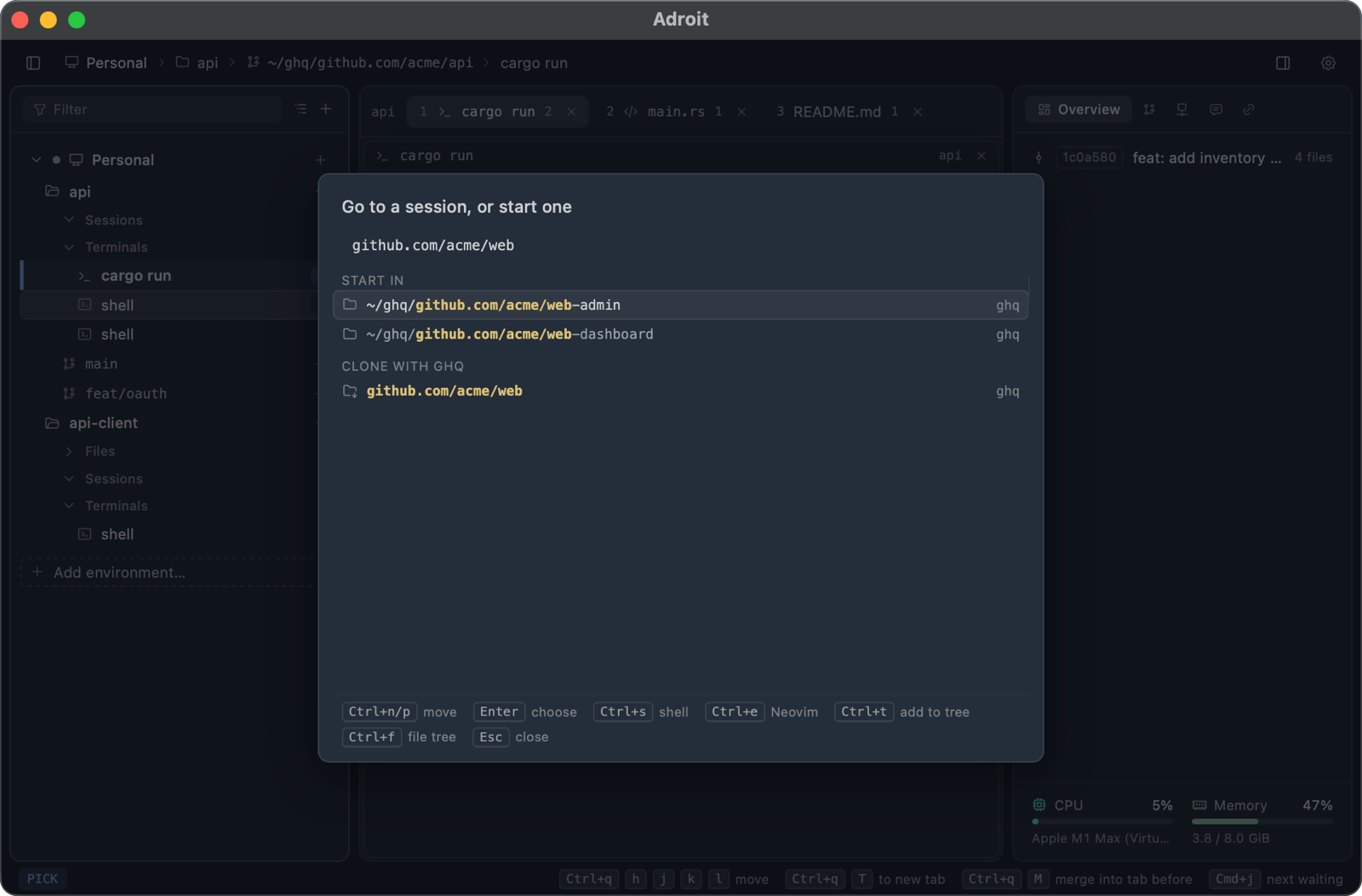
Section titled “Clone a repository”With ghq installed, type a repository ghq can clone, host/owner/repo or a
URL git clones from, and the picker offers a row to clone it. Choosing it runs
ghq get in a terminal shown with the keys, so whatever the clone asks, a
passphrase or a host to trust, is answered there. Once the clone succeeds, its
workspace is added to the tree and the directory is taken as if chosen from
the list.
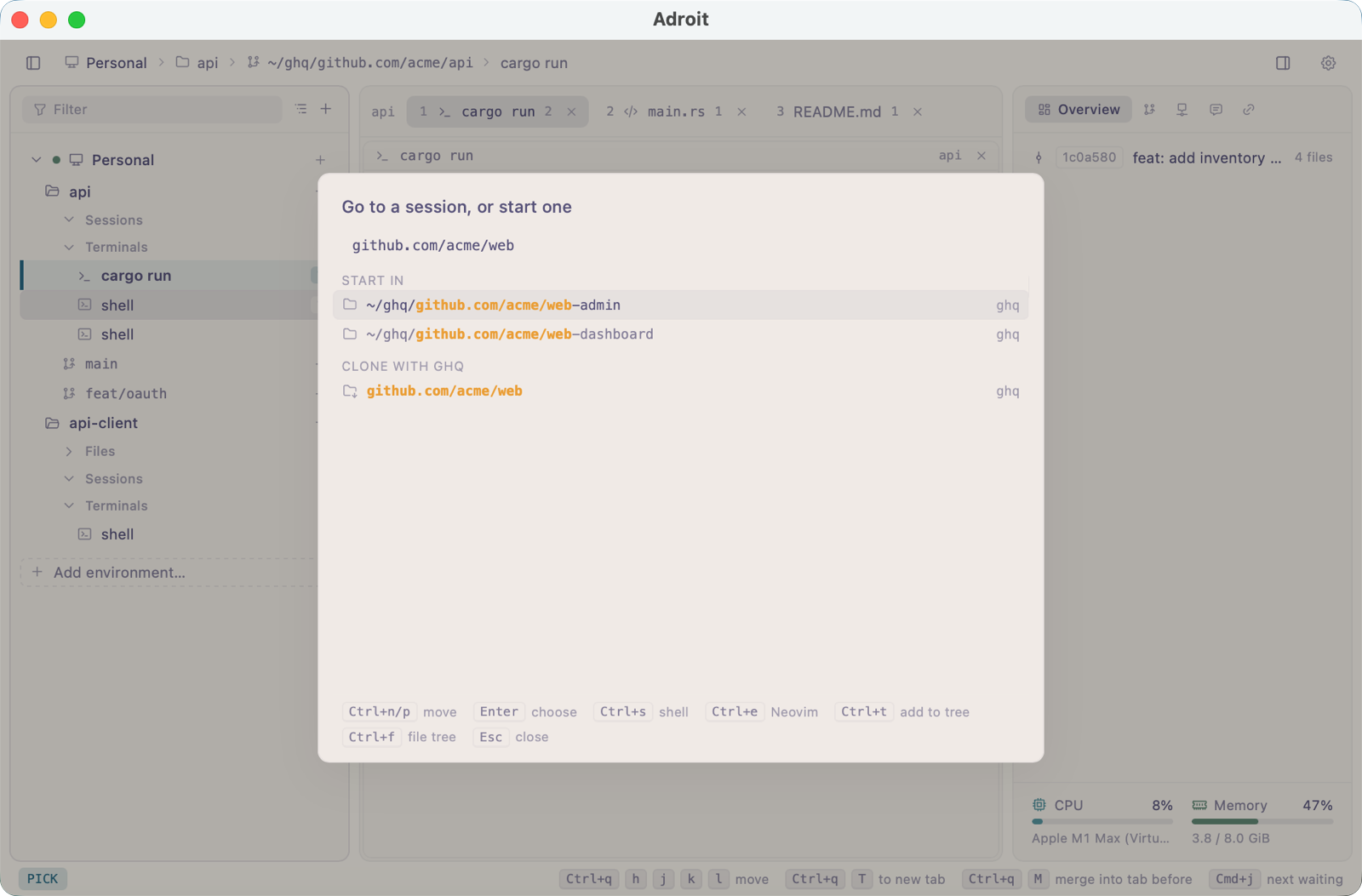
Type github: to look through GitHub instead. The picker offers the owners
gh is logged in as, you and your organizations; after github:owner/ it
offers that owner’s repositories ghq does not keep yet, private ones
included.
Scratch sessions
Section titled “Scratch sessions”A scratch session is for talk no project holds. Choose the picker’s first
row, or Session › New Scratch Session, or send a prompt with nothing open.
Every scratch session runs in the scratch folder
(~/.local/share/adroit/scratch unless your settings name another), and the
tree lists them all under Scratch.
When the talk turns to work on a project, the scratch session opens a session in that project’s directory, hands it what it needs, and the new session opens in its place with the keys. Claude Code asks whether to trust the scratch folder the first time only.
Go back to a session
Section titled “Go back to a session”- Choose it in the tree, or in the picker, which lists every running session above the directories, those that need you first.
- Mod+j and Mod+k go to the next and previous session waiting on you, in any repository.
- Mod+1 to Mod+9 go to a tab.
Closing a window or a tab only hides what it shows; the session runs on and the tree still reaches it. Closing Adroit itself leaves every session running, and opening it again shows them where they stand.
Resume a past conversation
Section titled “Resume a past conversation”Agents keep each conversation after its session ends, and Adroit lists only the sessions it runs. To return to one, press Mod+o (O in the tree). The list shows the conversations kept for the directory you are in, newest first, by every agent and login; Ctrl+a switches to every directory’s. Type to narrow it by title and directory.
Choosing one resumes it in a new session of its agent, in the directory it ran in and with the login that keeps it. A conversation a running session already holds is not resumed twice: choosing it shows that session.
End a session
Section titled “End a session”X on its row in the tree, or Mod+Backspace, ends a session. A session also ends when its agent exits. Ending one ends no other.
A session does not sit waiting once its task is done: its agent sums up where things stand and asks whether to close it. When you agree, it ends itself as ending it from Adroit would; its worktree stays and its conversation can be resumed. Otherwise it carries on.
When the host goes
Section titled “When the host goes”Sessions and shells run in a terminal host apart from the window. When that host goes, restarted, crashed or with the machine, what it held is interrupted rather than ended, and keeps its tabs. A banner then offers to bring it all back, to choose what comes back, or to let it go; Session › Bring Back Sessions… opens the same list later.
A session comes back as a new session resuming its conversation, in its
directory and login, from the same profile, with the model and permissions it
started with. A shell or Neovim opens again in its directory; what it
scrolled back is gone. restore_sessions in the settings brings everything
back at once (always) or never (never) instead of asking.
Start a session from a terminal
Section titled “Start a session from a terminal”The same start is a command, which works with the window closed:
adroit session start --agent codex --dir ~/src/api -- "Review the API"It prints the new session’s name. See Sessions that open sessions for its options.