

The window
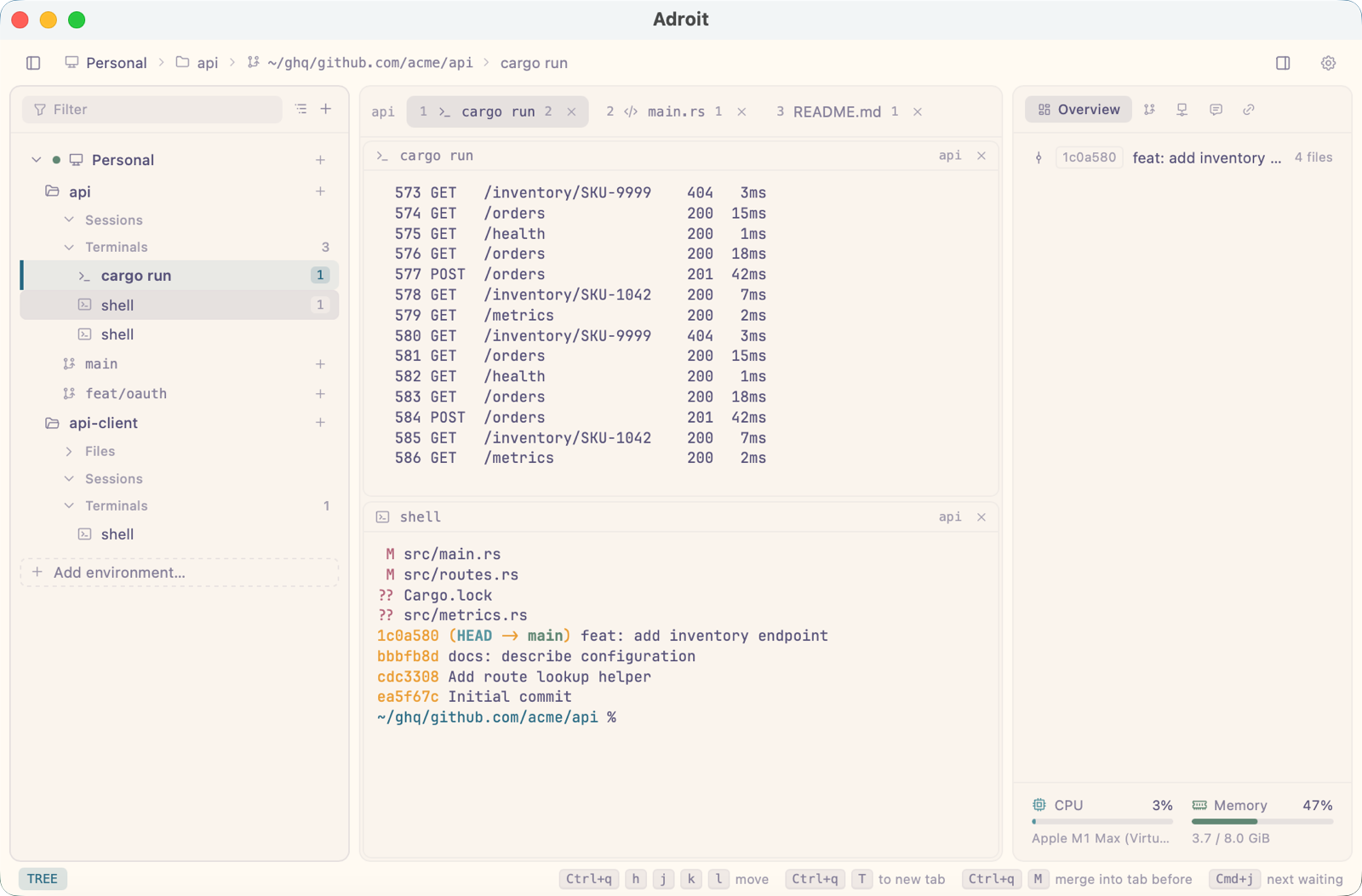
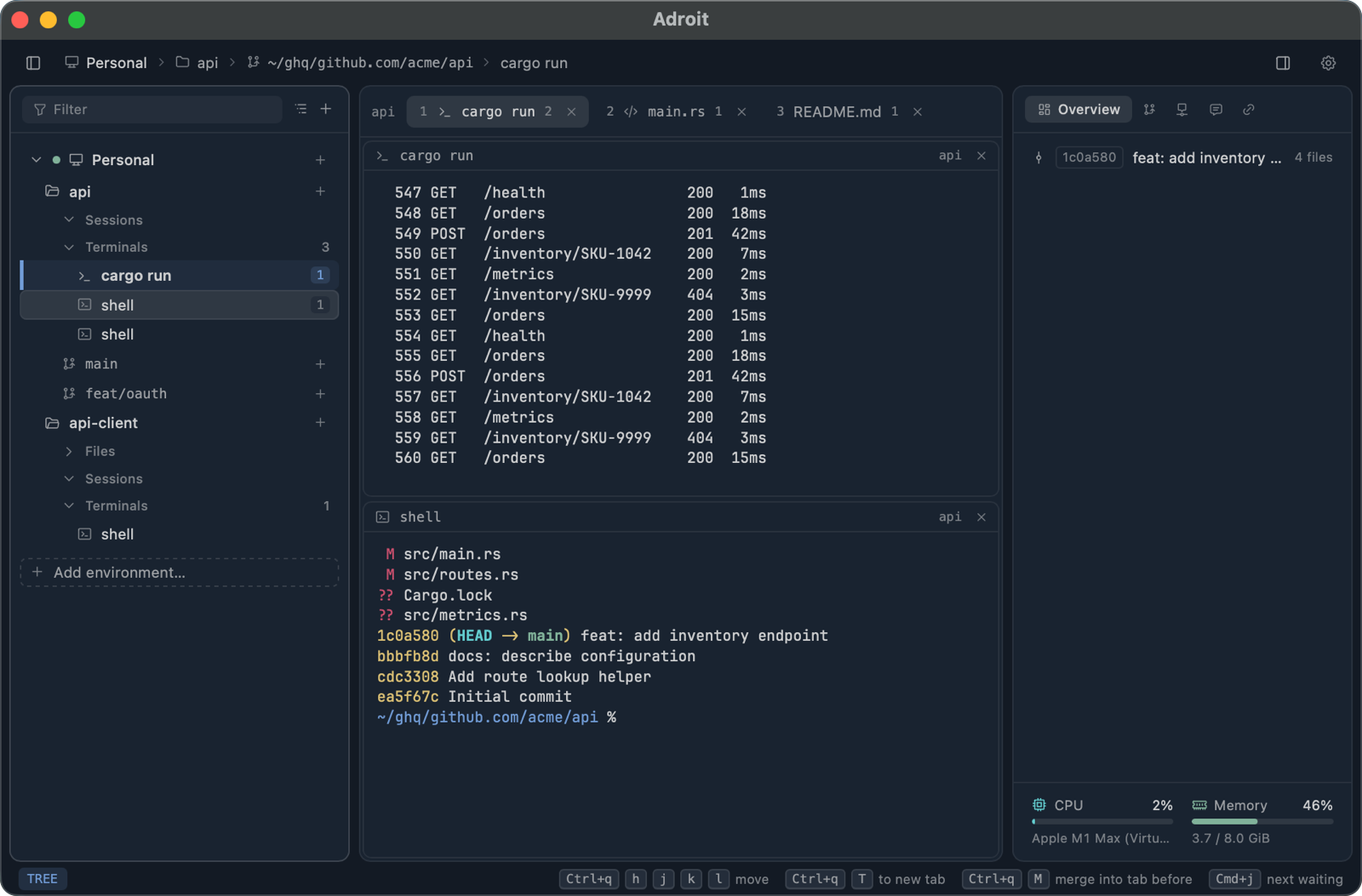
Adroit’s window has three panels: the tree of everything running on the left, the content in the middle, and the details of what is shown on the right. Mod+b and Mod+d show or hide the tree and the details.
The tree
Section titled “The tree”The tree lists every session and shell Adroit runs, by the directory it runs in. What holds them is what git says about that directory:
api ← a git repository├── Sessions ← every session of every worktree of api│ ├── auth-revamp│ ├── review-api│ └── implement├── Terminals│ └── $ dev-server├── Pull Requests 3 ← what is open on GitHub, folded until opened├── Issues 12├── main ← a worktree, folded until opened│ ├── Files│ ├── Sessions│ │ ├── auth-revamp│ │ └── review-api│ └── Terminals│ └── $ dev-server└── feat/oauth ├── Files ├── Sessions │ └── implement └── Terminalsnotes ← a directory outside git: no worktree row├── Files└── Sessions └── outline-the-talkScratch ← every scratch session, straight under it└── explain-regex-flags- A workspace is a git repository, the scratch folder, or else the directory a session runs in. It stays listed once anything has run there, across runs, until you remove it from its row’s menu or the close button its row shows under the pointer. Add to Tree (A) lists one before anything runs there. A workspace where nothing runs starts folded.
- Above its worktrees, a repository lists its own Sessions and Terminals: everything that runs in any of its worktrees, so what runs in the repository is seen without opening each worktree.
- Each worktree where something runs has a row of its own, folded until you open it, holding its own Files, Sessions and Terminals. Closing a worktree’s row ends, after asking, everything running there.
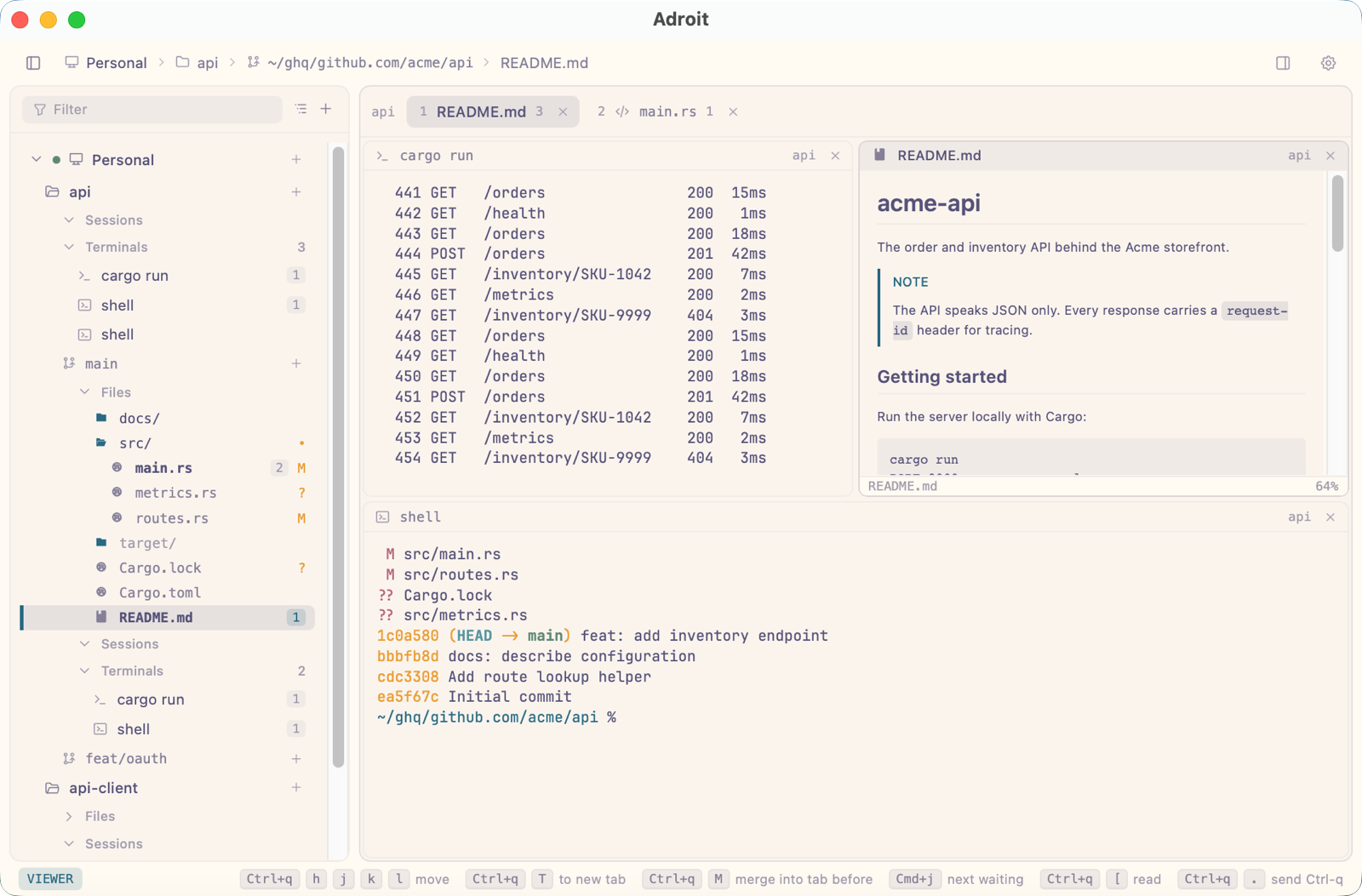
- Files lists the worktree’s files. A file git or jj sees changed is
marked with its letter, and a directory holding one with a dot.
N and K make a new file or directory there, named in
place; a name with
/makes the directories it passes through. - A repository on GitHub lists its open Pull Requests and
Issues, while
ghis installed. - ! also shows the worktrees where nothing runs, drawn dim. Opening one starts a session there.
Each session’s row shows its state, as its agent reports it or as its screen shows it: starting, working, waiting on you, working in the background, done or failed. A session whose turn finished out of view is marked done, with a check, until you look at it. A terminal whose program reports its state is marked the same way.
The sessions waiting on you are listed again at the bottom of the tree, apart from it, gathered from every repository and every environment. Mod+j and Mod+k go to the next and previous of them.
The filter at the top (/ in the tree, or Mod+f) narrows the tree as you type, by the same fuzzy match as the pickers, fzf’s syntax included. A workspace or worktree that matches keeps all it holds.
When the window shows more than one environment, each one’s work sits under a heading of its own, which says how its connection stands. The + on a heading starts a session, a shell or a Neovim there, or adds a directory to the tree.
Moving in the tree
Section titled “Moving in the tree”j and k move, gg and G go to the first and last row. Enter, o or l opens a row, returning to a window already showing it or opening a new tab; on a folded row it unfolds it first. s, v and t open it in a split below, a split beside, or a new tab. h goes back out and folds. A click on a row with rows under it folds or unfolds it.
n, $ and e start a session, a shell or a Neovim in the selected directory. x closes the windows showing a row without ending it; X ends it, a session or a terminal. R renames a session, as double-clicking its name does; leaving the field cancels.
The content
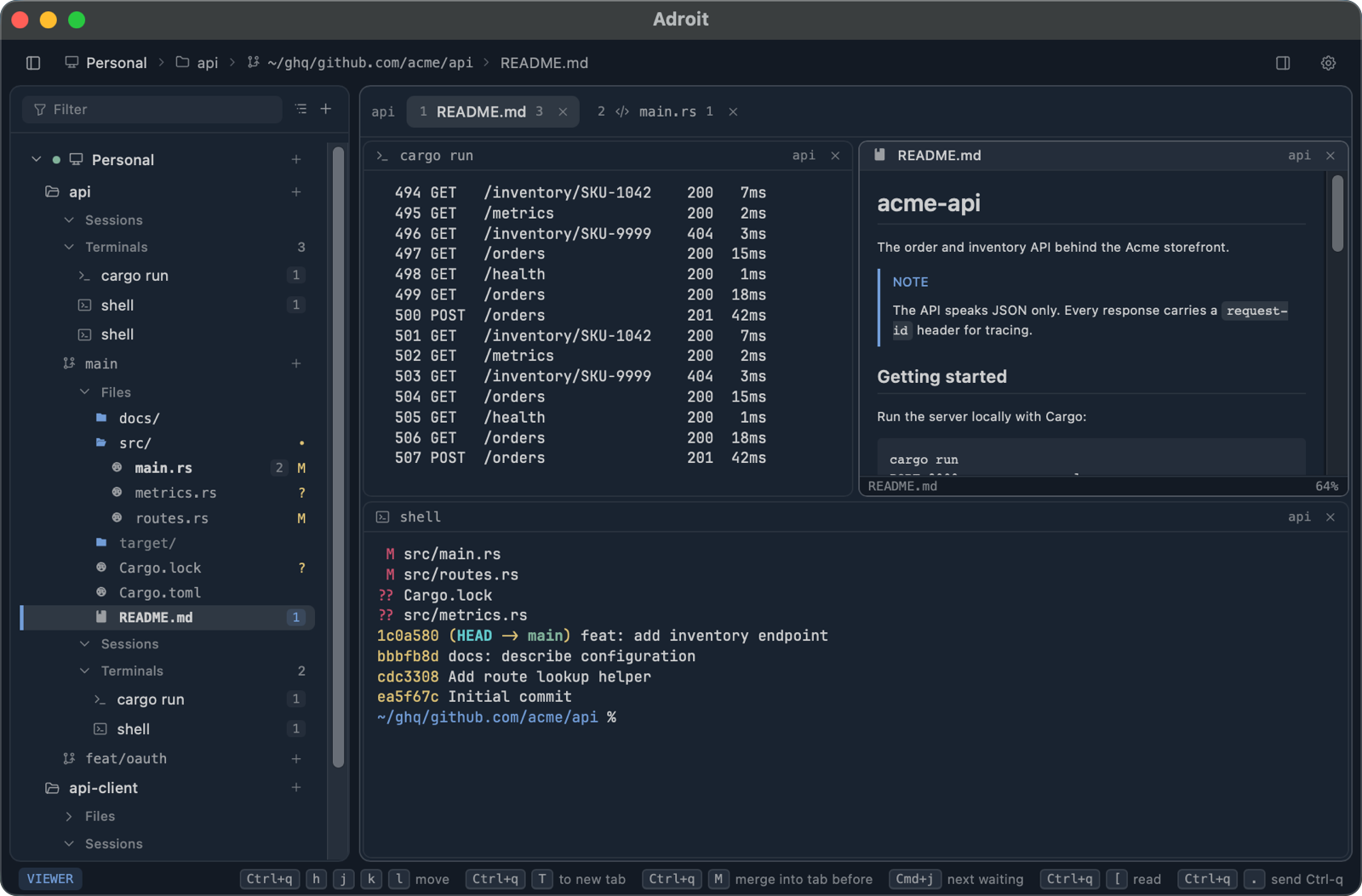
Section titled “The content”The content holds tabs, numbered from 1. Each tab is split into windows, and each window shows one thing: a session, a draft of one not started yet, a shell or Neovim, a file in the viewer of its kind, or a pull request or issue.
- Ctrl+q s and Ctrl+q v split the focused window below or beside. Splits nest, and the same session can stand in any number of windows.
- Ctrl+q h, j, k, l move between the tree, the windows, the prompt and the details.
- Ctrl+Tab and Ctrl+Shift+Tab go to the next and previous tab, Mod+1 to Mod+9 to one by number.
- Mod+w closes a tab. Closing only hides: sessions and shells run on, and the tree reaches them.
Opening something goes to a window already showing it, in any tab, or else opens it in a new tab after the one shown. Nothing opened takes the place of what a window shows.
A strip on top of each window tells what it shows: its state, its name and code, its agent and its worktree. A session’s window shows its agent’s own interface, and the focused one shows the prompt below it.
Arranging tabs
Section titled “Arranging tabs”- Ctrl+q g < and Ctrl+q g > move the tab shown a place to either side; drag a tab to put it elsewhere.
- Ctrl+q m and a number merge the tab shown into that tab, and Ctrl+q M into the tab shown before it: its windows, split as they were, come right of the windows there.
- Ctrl+q T moves the focused window to a tab of its own, and Ctrl+q H, J, K, L to a side of its tab.
- With the mouse, drag a window’s strip onto a side of another window, in its tab or another, or onto a tab. Holding it over a tab shows that tab.
Reading a console
Section titled “Reading a console”In a session’s console, a key the console does not bind starts reading it in Neovim: what it holds, scrolled off and on screen, with your own Vim keys for moving, searching and selecting. A yank copies to the clipboard. q, Esc or G goes back to the live console; i, a and o go to the prompt. Ctrl+q [ reads any console, a shell’s included.
While an agent waits on a choice or a permission, its console takes your answer directly. Ctrl+g i passes every key to the agent until Esc, for its own menus and commands.
Viewers
Section titled “Viewers”Files that are read rather than edited open in a viewer the window draws
itself: images, movies, HTML pages, Markdown documents and PDFs. Every
other file opens in Neovim, the one on your PATH with your own
configuration. A Neovim opened on a file quits when no window shows it any
more, unless it holds unsaved changes.
The Markdown viewer draws a document as Arto does, diagrams, formulas, highlighted code and GitHub’s alerts included, in the colours of Adroit’s theme. It draws the document again whenever its file changes, at the place you were reading. A link to another file opens that file; a link within the document scrolls to its place.
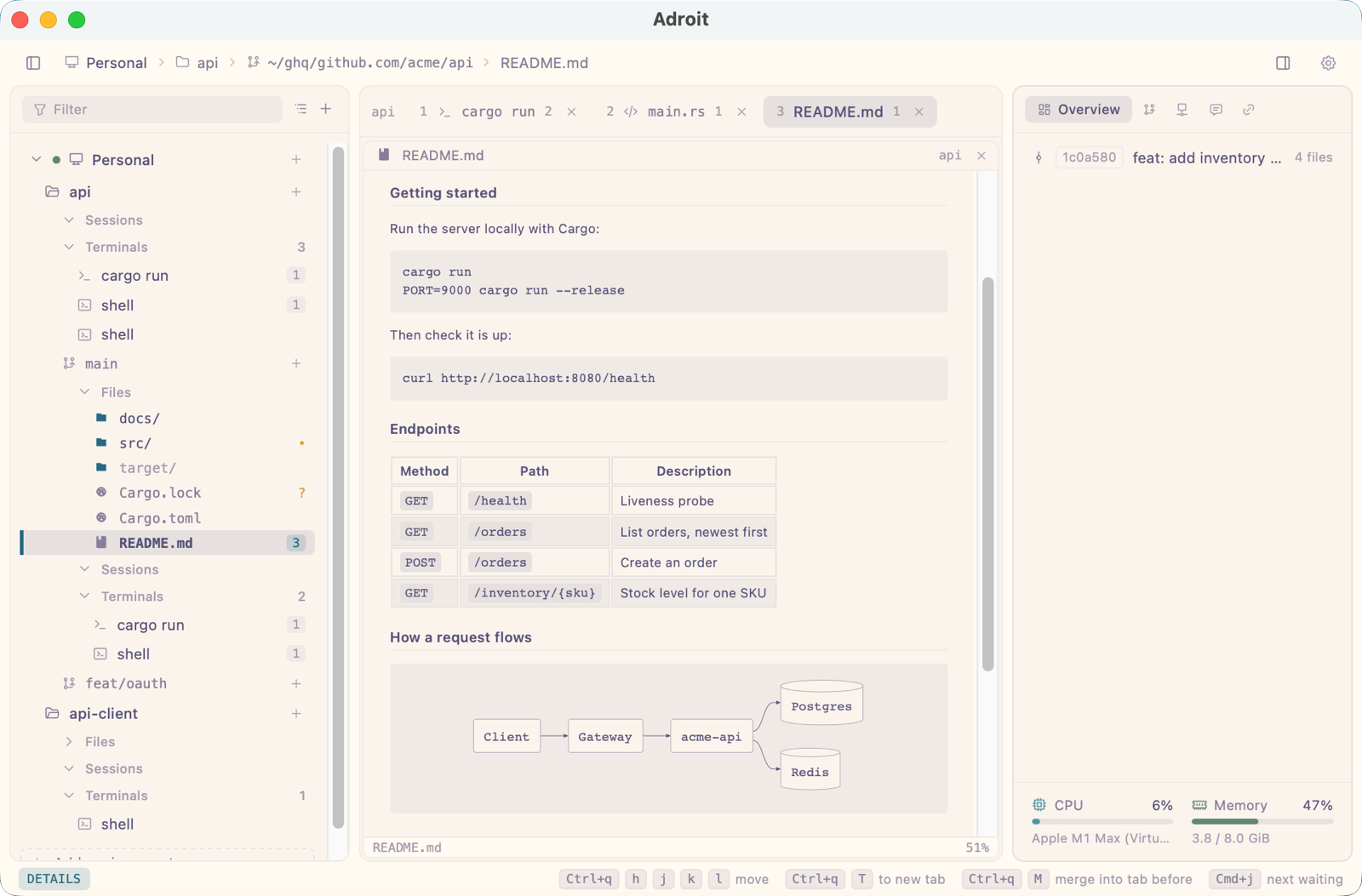
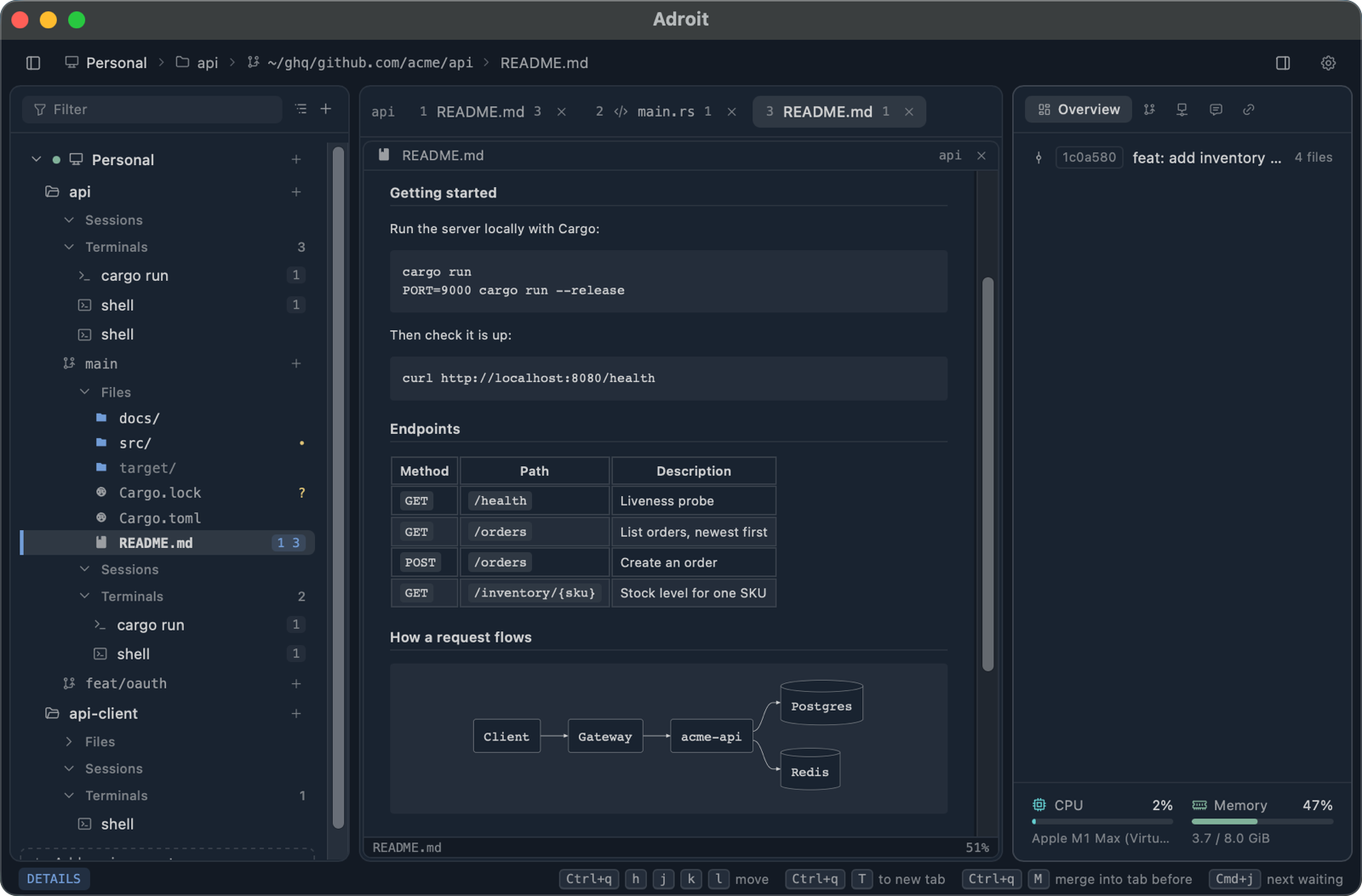
e in a Markdown document, or Ctrl+q e, switches its window to a Neovim on the document, and back. The Neovim runs on hidden while the viewer is shown, so switching back finds it as it was.
In every viewer, +, - and 0 zoom, and j, k, Ctrl+d and Ctrl+u scroll. The viewers read the files of this computer only; a work machine’s files open in Neovim there.
Images and the lightbox
Section titled “Images and the lightbox”Programs in a session or a terminal can draw images in the console. A click on one, or on an image the details’ Resources list, opens the lightbox over the window, with the session’s other images a step away: h and l go to the previous and next, +, - and 0 zoom, H, J, K, L or dragging move it, and q, Esc or a click outside close it.
Across runs
Section titled “Across runs”Each window keeps its tabs, splits, sizes and focus when it closes, and the next window opened with the same number shows them again. Mod+n opens another window onto the same work; each has its own tabs, folds and prompt.